
Editor
Syntax highlighting
PHP, JS/TS, JSON, YAML, Twig, Markdown, CSS, SQL and more (via tempest/highlight), including correct coloring of multi-line docblocks and heredocs. Highlighting is incremental on files ≥ 2000 lines: local edits re-parse only the touched lines, with a periodic full repair parse to restore multi-line token colors.
Two color themes ship (dark, light) and switch live from Settings.
Semantic highlighting
Where the language server supports it, colouring is corrected by MEANING rather than by shape: a property is coloured differently from a local variable and from a parameter, a static member leans, and a deprecated symbol is struck through. The lexer can only guess these from an identifier's shape; the server knows.
This layers ON TOP of the syntax colours above rather than replacing them — the server's own vocabulary has no entry for strings or numbers — so it works whichever highlight backend you have selected, and it needs no theme of its own.
It is requested once per file and refreshed on save. Servers that do not offer textDocument/semanticTokens (phpactor, at the time of writing; phpantom does offer it) simply keep the lexer's colours, with nothing to configure either way.
Parameter info
Typing ( or , shows the signature of the call you are in, with the argument you are typing in bold and underlined. The server says which one it is, so a five-parameter signature no longer reads the same at every comma. A signature too long for the popup is cut around that argument, not at its end. A function with overloads shows which one this is (1/3), and Alt+↓/Alt+↑ walk them. Ctrl+Shift+P brings the popup back after Escape, or summons it anywhere inside an argument list. (PhpStorm binds this to Ctrl+P, which Go to File owns here.)
Quick documentation
Shift+F1 shows the documentation for the symbol at the caret in a popup just under it (or above it, when under has no room). When the caret is on a problem, the problem heads the popup, parted from the documentation by a rule, as in PhpStorm. With no documentation, or no server, it is the problem alone. Markdown's marks are gone and code blocks are indented. The popup scrolls with ↑/↓, PgUp/PgDn or the wheel, and a ▲/▼ in its border says there is more. Esc, or any other key, closes it; the other key then does what it always does. A click on the popup stays there, and a click anywhere else closes it.
Quick fixes (Alt+Enter) put the server's preferred fix first, marked ★. An action the server knows but cannot run where the caret is appears greyed and struck through, with the server's reason beside it.
Problems
As in PhpStorm, a problem's message is not written after the code by default: the squiggle, the line number's tint, the marker stripe and the status bar say a problem is there, and these say what it is:
- Rest the pointer on a squiggle. A card opens beside it with each problem there, worst first: its severity glyph and message in full, then where it came from (
phpstan · variable.undefined). Once the language server has answered, the card adds the fixAlt+Shift+Enterwould apply (Fix: Import class) andMore actions…for theAlt+Enterlist, each with the key your keymap binds. Ctrl+F1(Error Description) opens the same card under the caret, without a server. macOS keepsCtrl+F1for itself, soAlt+Qdoes the same, and is the key named there.Alt+Shift+Enterapplies that first fix at once, without the list. Only a terminal that reports modifiers on Enter can send it (kitty's keyboard protocol, xterm's modifyOtherKeys). Elsewhere it arrives asAlt+Enter, which opens the list the fix heads.
The caret counts as on a problem from its first character to just past its last, which is where typing the offending word leaves it.
Diagnostic messages (Settings → Interface → Editor, or Cycle Diagnostic Messages) puts the message back after the code with inline.
With Diagnostic messages set to menu, the message no longer trails the line. Instead the caret line's problems head the Alt+Enter list, worst first, above the fixes for them, as in PhpStorm. They are rows to read, so the selection skips them; a click on one opens it in the Problems panel, its row selected. A line with problems and no fix still opens the list. That covers a tool plugin's findings, and a line where no server is running yet.
Breadcrumbs
The bar under the tabs says where the caret is, from the project root down: the file's folders, the file, then the scopes containing the caret — src › Http › UserController.php › UserController › store. Each crumb is clickable: a folder or the file is revealed in the tree, a scope moves the caret to its declaration. The scope you are in is lit like the active tab. When the bar is too narrow for the whole trail it drops crumbs from the root end, behind a leading … ›, so the scope the caret is in is always shown. On a screen of 30 rows or more a rule separates the bar from the code.
PHP is scanned offline, so it is instant and correct with no language server running at all. Other languages use the server's own textDocument/documentSymbol answer, refreshed on save and on opening a buffer; without a server that provides it, the bar simply stays empty as before.
The sticky-scroll band above the code reads the same scopes, so it names your enclosing class and method in every language the trail does.
Buffers and tabs
Multiple buffers with an editor tab bar: Ctrl+←/Ctrl+→ switch, Ctrl+Shift+←/Ctrl+Shift+→ reorder, Ctrl+F4/Alt+W closes (with a Save / Discard / Cancel prompt on unsaved changes), Ctrl+E opens the recent-files popup. Every buffer keeps its cursor, undo history and diagnostics. The open set is restored on the next launch.
The View menu's toggles (Soft-Wrap, Code Vision, auto-pairs, format on save) show a ✓ while they are on. Its cycle commands step diagnostic messages, inlay hints and line numbers through their modes.
On a terminal 30 rows or taller each tab is a pill, shaded the way a file tree row is: the shown tab grey, blue while its pane has the keys, a hovered one lighter, the rest on nothing. The shade reaches half a row above and below the name — into the line it stands on, and into the rule over the strip. The dock and the git view's tabs work the same way. At the side of the editor the tabs are spaced like the file tree, a blank line between two, with a line down the edge facing the code that opens beside the shown or hovered tab. Shorter terminals keep the one-row strip, so the code keeps the rows. The dock's top edge is its resize grab, above the tool's count.
Two open files with the same name say which is which — porta.php (git) and porta.php (symfony-lsp) — and the qualifier grows a directory at a time until it distinguishes them, so two GitSidebar.php under <plugin>/src/View/ become GitSidebar.php (git/src/View) and (other/src/View). It goes after the name rather than in front so the part that says what the file is survives a narrow strip. Names that are shared deliberately — every help page is one Documentation tab — are left alone.
The tab bar sits on top by default; Settings → Interface moves it to the bottom, left or right. A side strip is a fixed 24 columns, so on a terminal too narrow to seat it and still leave a file worth reading it returns to the top on its own and goes back to the side when the room does. Changing the setting while it is displaced replaces what comes back, so you never get an abandoned preference restored under you.
The recent-files popup outlives the tab: below the open buffers it lists the files this project has had open and closed, newest first, which is usually where the one you want is. The same list seeds Search Everywhere's empty state, so the two cannot disagree about what "recent" means. It is kept in .porta/recent-files.json, capped at 32. A file that has since been deleted is dropped rather than offered, and one that has been renamed follows the rename the way bookmarks and breakpoints do. Help pages and images are never recorded — reopening a help page as editable source is not a switch.
A file larger than 2 MB opens read-only instead of being refused: a scrollable preview of its first 2 MB, cut at a line break, with a banner naming the file's real size. ↑/↓, PageUp/PageDown and Home/End move through it and the wheel scrolls it; nothing about that tab can be edited or saved, because it is a viewer pane rather than a buffer. Non-UTF-8 files are still refused. Clean buffers that change on disk (e.g. rewritten by a formatter) reload automatically within a second.
Editing
Undo/redo (
Ctrl+Z/Ctrl+Shift+Z) with coalesced typing runs.Format on save — enable the
formatOnSavesetting to run the language server's formatter before everyCtrl+S. The save never hangs: if the server takes more than 2 seconds the file is saved unformatted with a status-bar note.Close Other Tabs/Close All Tabslive in the command palette alongside the tab context menu, which also offers Close to the Left and Close to the Right — the run of tabs beside this one in the strip. Every bulk close leaves unsaved tabs open and says how many it kept.Pinned tabs (
Pin Tabon the tab menu) carry a⌾and survive every bulk close — Close Others, Close All, and both close-to-the-side verbs. The pin is saved with the session, so a tab you deliberately kept is still there next launch. Pinning does not reorder the strip. A pinned tab shows no✖;Ctrl+Wor the tab menu still close it.Column selection by mouse (
Alt+Shift+drag) or keyboard:Alt+Ctoggles column mode — the status bar showsCOLUMN— andShift+arrows then build a rectangle instead of a linear selection. Passing over a short line does not narrow it; the column is remembered. PhpStorm'sAlt+Shift+Insertis not available in a terminal, henceAlt+C.Block copy and paste round-trip: a column selection copies as one line per row, and pasting a block whose line count matches the caret count gives each caret its own line, top to bottom. A clipboard that does not match is repeated whole at every caret, as before. The terminal's own paste (
Cmd+Von a Mac,Ctrl+Shift+Vin most Linux terminals) lands the same way.Auto-closing brackets & quotes: typing an opener inserts its pair, selections get wrapped, closers type over, and backspacing an empty pair removes both — toggleable (
autoPairs).Smart Enter between a
{}/()/[]pair opens a blank indented line with the closer dropped below; smart Home goes to the first non-blank column first.Structural editing: expand/shrink the selection through the syntactic hierarchy — caret → word → brackets/quotes → line → document (
Ctrl+W/Ctrl+Shift+W); move a statement over blank-line gaps (Ctrl+Shift+↑/↓); surround the selection with a bracket pair, quotes or anif/foreach/trysnippet (Ctrl+Alt+T).Code folding (
Ctrl+.): collapse/expand the{ … }block at the caret; a⋯ N linesmarker shows on the folded line, and clicks and scrolling map through hidden lines. The gutter's fold column marks every line a region starts at —▾open,▸collapsed — and clicking it folds or unfolds that region. With a language server the regions come fromfoldingRange, so a fold starts at the declaration; without one they come from a brace scan, which starts it at the{.Ctrl+Shift+-collapses every region in the file andCtrl+Shift+=opens them all again — the fastest way to see a long class as a list of its members. (=rather than+: a terminal reports the unshifted key.)Line operations: duplicate (
Ctrl+D), delete (Ctrl+Y), move line (Alt+Shift+↑/↓).Complete the current statement (
Ctrl+Shift+Enter): closes the brackets the line opened, then either ends the statement or opens a block, and leaves the caret on a fresh line.$x = foo(1, bar(2becomes$x = foo(1, bar(2));andif ($x > 1becomesif ($x > 1) {with an indented line and a closing brace. What counts as a terminator, a block and a block keyword is per language — Go writes no semicolons, Python's block is a:and its indent, and JSON, YAML and Markdown have no statement to complete, so the key does nothing there. A line ending in an operator is a statement that continues and is left alone. One undo step. The bracket count does not read strings, so a parenthesis inside one is counted.Start a new line below (
Shift+Enter) or above (Ctrl+Alt+Enter) without splitting this one — whatever column the caret is in. PlainEnterstill splits at the caret; these two do not look at it. The new line copies its neighbour's indent, and going DOWN from a line that opens a block takes one more level.Comments, in every language Porta can colour.
Ctrl+/comments the line or the selected lines one at a time;Ctrl+Shift+/puts one block comment around exactly what is selected —foo(bar, baz)withbarselected becomesfoo(/* bar */, baz)— or around the current line's content when nothing is. Either key comes off again the same way it went on.Each prefers a different form and falls back to the other, which is what makes both work everywhere:
Ctrl+/in a Twig, CSS, HTML or Markdown file wraps each line in that language's block delimiters, because none of them has a line comment at all, andCtrl+Shift+/in Python or YAML line-comments, because neither has a block.Ctrl+Shift+/on a blank line opens an empty comment with the caret inside it.Un-commenting a block needs the target to BE the comment: with no selection the target is the whole line, so a one-line block comment comes off from anywhere on it, while one spanning several lines has to be selected first.
Clipboard (
Ctrl+C/X/V) also copies to the system clipboard via OSC 52.Ctrl+Shift+Vopens the clipboard history — the last 20 things you copied, newest first, with the picker's type-to-filter over all of them. Newlines show as⏎, so a three-line copy is distinguishable from a long one at a glance instead of both reading as their first line. Re-copying something already in the list moves it back to the top rather than adding a duplicate, the history is one list across every buffer in the session, and picking an entry also makes it what plainCtrl+Vpastes next. A paste the terminal makes from the system clipboard joins the list too.
Live templates
Type an abbreviation and press Tab to expand it into a snippet with tab stops — Tab / Shift+Tab walk the placeholders, Esc ends the session. PHP ships fore, forek, fori, ifn, inn, thr, tryc, pubf, prif, ctor, sout and vdd; JavaScript and TypeScript share a smaller set.
Postfix templates start with a dot and wrap what is already to their left, so you write the expression first and decide what to do with it after:
| Type | Get |
|---|---|
$rows.fore + Tab | foreach ($rows as $item) { … } |
$user.inn + Tab | if (null !== $user) { … } |
$this->count().var + Tab | $value = $this->count(); |
$ok.not + Tab | !$ok |
The receiver can be a variable, a property or static chain, a call or an index ($this->rows, Foo::bar, count($x), $rows[0]).
Define your own under languages.<id>.templates in .porta.json — see configuration.md. Yours replace a built-in of the same name, and an empty body switches one off.
Tab is still Tab: with no template at the caret it indents as it always did, and a language with no templates of its own is unaffected. Template bodies are LSP snippets — the same syntax the language server's own completions arrive in — so $1 is a tab stop, ${1:default} a placeholder, $0 the final caret, and a plain $name stays literal.
Multiple carets
Add carets above/below (Ctrl+Alt+↑/↓), at the next occurrence of the word (Alt+J) or at all occurrences (Ctrl+Alt+Shift+J, or Alt+Enter in the find bar to select every match of its query); Alt+Click adds/removes one, Alt+Shift+drag makes a column selection. Typing, deleting and pasting apply at every caret as a single atomic undo step. Esc collapses back to one caret.
Indentation
A file's original indentation (tabs or spaces) round-trips unchanged. Tabs render at 4-cell stops, and Tab/auto-indent insert the file's own indent unit. Per-language defaults are configurable (Settings → the language, or languages.<id> in .porta.json), and .editorconfig files take precedence when enabled — see configuration.md.
Gutter and decorations
Line numbers (absolute or relative), git change markers (added / modified / deleted vs HEAD, refreshed on open and save), diagnostic markers, breakpoint dots, fold triangles, indent guides, identifier-occurrence and matching-bracket highlighting, and parameter-name/type inlay hints from the language server.
Inlay hints (Settings → Interface → Editor, or Cycle Inlay Hints) show in one of three ways:
inlinedraws each one in the line as a shaded pill, with the space the server asks for left outside it, sosum(base: 42)and phpantom'sStatusTone 46 referencesread as code with a note beside it. A parameter's name and a type have different shades; under the monochrome theme a hint is faint and slanted;tooltipputs them on a card when the pointer rests on the word they belong to;nonedoes not request them at all.
As in PhpStorm, a parameter's name shows only before an argument that says nothing about its purpose on its own — a number, a string, an array, null, true or false — and always for a by-reference parameter (&name:). Parameter name hints shows them for all arguments or none; Type hints turns the inferred types off. A switch applies at once. Right-click a hint for the same choices in place — hide that kind, show a parameter's name only before literals, or hide every hint — the caret stays where it was; the palette has Cycle Parameter Name Hints and Toggle Type Hints.
A hint never moves your text: a click on it lands on the character it sits before, and on a soft-wrapped line a hint is drawn only where its row has room — one that would push code off the row is left out.
The gutter has a shade of its own, so the numbers read as a margin. A line with a problem has its whole gutter in the worst one's own colour — red for an error, orange for a warning, yellow for a notice, the colours its squiggle, the status bar and a toast use — and a hint marks nothing. While inlay hints show as cards, a line that has some takes the inlay pill's shade. Under the monochrome theme an error's gutter is reversed and a warning's or a notice's underlined. Colour only: the gutter draws no problem glyph, and a breakpoint or bookmark keeps its glyph on the tint.
The caret line's number is bold. With colour, a shaded band marks the whole caret line. In the monochrome theme (and under --no-ansi) there is no band; instead a › stands in the marker column beside the number, since underlining the whole line would mark every character you type. The last pinned sticky-scroll row is underlined there too, to separate the pinned headers from the code below them.
Under the pointer, a gutter mark underlines and its tooltip says what it is and what a click does: "Breakpoint · click to remove", "Bookmark", or "Modified · click to see the change" on a git change mark. A tinted number has no card: rest the pointer on the problem's squiggle for it.
The completion popup
Each row is the name, the server's type and the item's kind: a method's signature or a property's type, in the muted pen so the name still reads first.
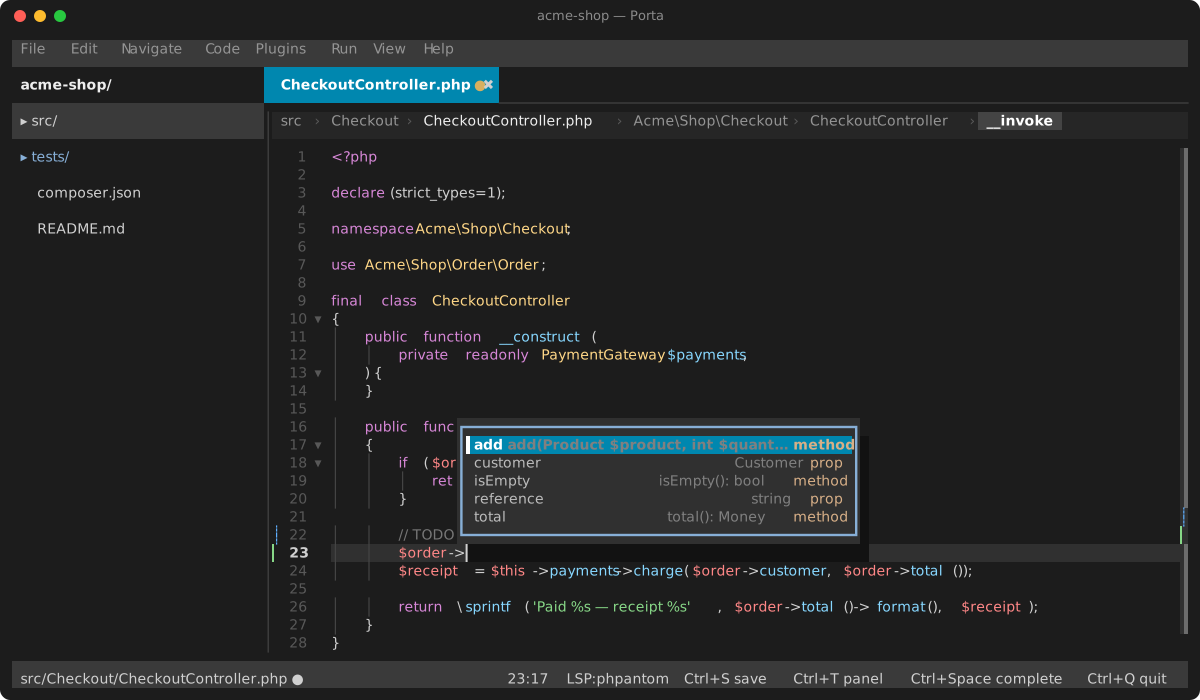
Where the type comes from depends on the server, and both are handled: some send it with the completion, some only answer when asked. Porta asks about the rows on screen — once per item, and never at all when the type is already there or the server does not offer to resolve. A row that scrolls in under a newly typed prefix may show no type until the selection reaches it.
The name is served first and the type takes what is left. A completion whose label you cannot read is not a completion — the type is what you check once the name is already the one you meant — so at a narrow width the type is truncated, and when the name alone fills the row the type is not drawn at all.
The popup holds the keys, so it wears the heavy frame. Its selected row starts with ▌, and an item the server marks deprecated is struck through. A ▲ or ▼ in the border says the list goes on past what is shown, and PgUp/PgDn move a page. When the list fits on neither side of the caret, it takes the roomier side, cut to fit. It never covers the line being typed.
The docblock beside the list scrolls with Ctrl+↓/Ctrl+↑, with its own ▲/▼. A click on the popup or the docblock stays on the popup; it does not land in the code underneath.
Ctrl+Space always gets an answer where it was pressed. While the servers are asked it shows ◌ Loading…. After that you get the list, or "No suggestions", or "No language server" when nothing serves the file. Any key takes the note away. The automatic trigger after -> and :: stays silent, because a note on ordinary typing would flicker.
Inline debug values
Stopped at a breakpoint, each line that assigns a variable shows what it holds, after the code:
$count = 41;                    $count = 41
$name = 'thing';                $name = 'thing'
It is a join of two protocols that do not know about each other. The language server says WHERE the variables are and what they are called (textDocument/inlineValue); the debug adapter says what they hold. A variable the server names but the adapter has not reported is simply not shown — it has not been assigned yet at this point in the frame.
Both bundled servers can supply the WHERE, by different routes. phpactor answers textDocument/inlineValue directly. phpantom_lsp does not offer that request at all — so its semantic tokens stand in: the same pass that colours the file types each local as a variable or a parameter, and the range it gives is the name with its $. Nothing extra is fetched and nothing is guessed; a server that offers neither simply shows no values.
The values share the trailing slot with the inline diagnostic and with a plugin's line annotation (git blame). While the debugger is stopped the value wins, because the other two keep their other surfaces — a diagnostic still has its squiggle and card, its stripe cell and the Problems panel. They disappear the moment the debuggee continues or the session ends: they were facts about a frame that is running again.
The Problems panel
Alt+6 collects every diagnostic in the open buffers, sorted by file then line. A click on the caret's problem in the status bar, or on a problem row at the top of the Alt+Enter list, opens it here with its row selected (unless the panel's filter hides it, or its file is collapsed: then the panel just opens). A row is the severity glyph, the message, and — when the source named one — the rule that fired, at the end:
✗ Name "Other" is imported but not used worse.unused_importAt the end rather than in front, because the rule is what you search for to suppress it or to tell two identically-worded findings apart; the sentence is what you read the row for. It comes from the language server's code, or from an analyser plugin that passed one.
Being at the end does not make it the first thing dropped: a panel too narrow for both elides the sentence and keeps the rule whole, which is the point — long messages are exactly the ones where the rule is all that tells two findings apart. Below a two-dozen-column floor for the message the row gives up and cuts normally, since a rule name with no sentence beside it names nothing you could act on.
Unused and deprecated code
A diagnostic's severity says how bad something is; its tags say what kind of thing it is, and the two are independent. An unused import arrives from phpactor at severity 2 — the same severity as a warning about code that runs — so without the tag it looks exactly like a real problem, and the only way to tell them apart is to read the message.
So tagged ranges are drawn differently from the text around them:
| Tag | Drawn |
|---|---|
| unnecessary | faint — code that does nothing, the terminal's version of PhpStorm's grey |
| deprecated | struck through |
Both keep the severity-coloured underline they always had, so the tag adds to what the diagnostic says rather than replacing it. A tag Porta does not recognise draws normally.
Nothing needs turning on: the client advertises tagSupport in the handshake, and servers that send tags have theirs drawn. phpactor sends them for unused imports; a server that sends none is unaffected.
Last edit location
Ctrl+Shift+Backspace takes you back to what you were writing. Press it again to walk further back through the last ten places you edited; making an edit starts the walk over, because the next press then means "the place before here".
It is a different list from navigate-back's (Ctrl+Alt+Left), which returns you from a jump and so knows only the places a navigation verb pushed. Scrolling away from your work, or opening another file from the tree, pushes nothing there — and that is exactly when you want this one.
Consecutive edits in one place are one place, so typing a word does not fill the list, and a renamed file is followed rather than lost. The caret lands at the start of the line rather than the column the edit was at: a stale column on a line since re-typed is a worse guess than its start.
Copy path and reference
Ctrl+Shift+C copies the active file's path relative to the project. Ctrl+Alt+Shift+C copies a reference to where the caret is: the enclosing symbol when there is one (App\Http\Svc::run, or App\helper for a namespaced function), and path/to/file.php:12 when there is not. Both are on the editor's right-click menu; the file tree has had the two path forms on its own menu all along.
A symbol is the more useful half in a message or a test filter — it survives the file being edited underneath it, where a line number does not — which is why the line number is the fallback rather than the default. The scopes come from the same source the breadcrumb trail reads, so this works in every language that does: PHP from the offline scanner, everything else from the language server's document symbols.
The reference is spelled the way the language does — App\Http\Svc::run in PHP, Service.handle elsewhere. A scope carries a label and a kind and no language semantics, so PHP is named and the rest share ., which is what JavaScript, TypeScript, Python, Java and Go all write. A language that spells it :: gets a reference that reads a little wrong; that is a smaller cost than a table of guesses about languages nothing here tests.
Scratch files
Ctrl+Alt+Shift+S asks which language and opens an empty buffer for it — somewhere to paste a snippet, draft a query or try a syntax without adding a file to the project or a line to git status.
They live in <home>/.porta/scratches/, beside the global config and the global plugins rather than in the project, because that is what makes them scratch files: the snippet you are reformatting outlives whichever project happened to be open. Names are minted per language — scratch_1.php, scratch_2.php, and a separate scratch_1.md — so a tab strip full of them still reads.
Picking a language rather than typing a name is the whole interaction: the extension is the only thing the editor needs in order to highlight, indent and hand the file to a language server. The list is the same thirteen languages the settings screen configures, plus plain text.
PhpStorm's binding for this is Ctrl+Alt+Shift+Insert, which a terminal cannot deliver — every modified Insert sequence parses to nothing — so the S chord stands in. Rebind it like any other action; see keybindings.md.
Show whitespace
Off by default (Settings → Interface, or showWhitespace in .porta.json). Leading and trailing whitespace is drawn: a space as ·, a tab as → followed by blank to its stop.
Leading and trailing only — not the spaces between words. PhpStorm offers the three separately, and turning the inner ones on writes a dot between every word; that is legible on a wide screen with a pale grey and unreadable in a terminal, which has one intensity and eighty columns. It is also where the questions are: is this file indented with tabs or spaces, and is there junk after the semicolon.
A tab is drawn blank after its arrow rather than dotted, which is what a graphical editor does and what keeps it legible here: the indent guides take the first cell of every indent level, arrow included, so it is the padding that tells a tab from four spaces — blank against four dots.
The substitution is one display column for one, so nothing downstream sees a different line than it would have.
Method separators
Off by default (Settings → Interface, or methodSeparators in .porta.json). A thin rule closing off each method and named function — PhpStorm's separator, in the place PhpStorm puts it: along the bottom edge of the member's last line.
It is an underline on that row rather than a row of its own, so turning it on costs no vertical space and shifts nothing. Under the closing brace is also the only placement that survives docblocks: the line ABOVE the next method is usually its own /** … */ or #[\Override], and a rule through one of those reads as a mistake.
The lines come from the same scopes the breadcrumb trail and the sticky band read — the offline PHP scan, or the language server's document symbols — so the rules appear in every language those work in. Abstract and interface methods have no body to close, and get none.
Soft wrap
Alt+Z, off by default (Settings → Interface, or softWrap in .porta.json; the key saves what it sets). A line longer than the pane continues on the next row or rows instead of running off the right edge. Continuation rows carry no line number and no gutter marks, so the numbers still count lines rather than rows.
Horizontal scroll is disabled while it is on, because the two are the same mechanism read two ways: a wrapped segment is the same slice of a decorated line that Ctrl+←-style scrolling produces, taken at a fixed offset instead of a moving one.
Everything follows the visual rows, not the document lines. ↑/↓ step through a wrapped line's segments before leaving it, arriving in the first segment from above and the last from below; clicking lands on the row you clicked; and the viewport scrolls INTO a line taller than the pane — to follow the caret near the end of one, and under the wheel, which steps a screen row at a time (a code-lens or block row counting as one), so the middle of a line taller than the pane is in reach without moving the caret.
Wrapping is measured on the line's own text, not on its decorations. Inlay hints and inline diagnostics ride in the same row and would otherwise make the text reflow as they arrived — they clip at the row edge as they already do.
Diffs follow the same setting. The diff pane wraps each side of a change, its gutters blank on the continuation rows, and in the merge view the ours and theirs columns give each line exactly as many rows as the editor between them does, so the three stay level. The Review view's file pane wraps its code too.
Code vision
Alt+V, off by default. The dim "3 usages" line a language server offers above a declaration, from textDocument/codeLens. Each lens takes a row of its own above the line it describes — the only decoration that ADDS a row rather than painting into one — and clicking it runs the command the server attached, or says so when the lens is informational and carries none.
Requested on a buffer switch and on save, which is the same settle point the git change marks use: a lens count is a real round trip, not something to spend per keystroke. Turning it off stops the requests, not just the painting.
phpantom advertises codeLensProvider; phpactor does not, and is never asked.
Bookmarks
F11 toggles one on the caret's line, Alt+2 lists every mark in the project with the line's own text beside it. Marks show as ◈ on the gutter's marker column, below breakpoints, and they survive closing the file — they live in .porta/bookmarks.json, not on the buffer.
A rename carries them with the file, whether it came from the tree or from a language server's refactoring. A delete does not; the mark is dropped the next time the file fails to open.
Identifier highlight
Park the caret on a symbol and its other occurrences light up. With a language server that supports documentHighlight (phpantom and phpactor both do) the occurrences are the semantic ones — a local $x no longer lights up a same-named variable from another scope — and a write access is shaded differently from a read, PhpStorm-style. In the monochrome theme the two separate by weight instead of colour.
Without a server, on a file it has no answer for, or in the moment before the caret settles, the editor's own whole-word scan shows instead; it reports every match as a read, because matching text cannot tell an assignment from a use.
The lookup waits for the caret to hold still, is skipped entirely while the answer already on hand covers the caret's symbol, and is never sent to a server that did not advertise the capability.
The marker stripe
The editor's rightmost column maps the whole file onto the pane's height, so a glance down the margin says where the interesting lines are without scrolling. Each cell shows the most important thing landing on its slice of the file, and the kinds resolve by strict precedence:
| Mark | Means |
|---|---|
▶ | the debugger's stopped line |
█ ▓ ▒ ░ | a diagnostic — the block gets heavier with the severity; with colour an error's, a warning's or a notice's cell is filled with its colour, as its line's gutter is |
● | a breakpoint |
━ | the search hit F3 is on |
▎ ┆ ▁ | a git change — added / modified / deleted, the same marks the gutter draws |
◈ | a bookmark |
✎ | a review conversation, from a plugin such as review |
┈ | any other search hit from the find bar |
A faint band behind the marks is the viewport thumb: the part of the file you are looking at, shown only when the file is taller than the pane. On rows with no mark the thumb draws its own ▐, so it is visible without the band. Under the pointer a mark underlines, and its tooltip says what it is and the line a click goes to: "Bookmark · line 41". Clicking a cell jumps there.
Every mark is a distinct shape rather than a colour, so the stripe still reads under --no-ansi and in the monochrome theme. Change marks follow the git plugin's own gutter marks setting: turn that off and they leave the stripe too.
The file tree
The row under the cursor wears a bar in its first column: ▌ while the tree has the keys, ▎ once focus moves elsewhere, so you can see where they will land when you come back. A second file picked with Shift+↑/↓ or a modifier click shows a thin │. The same bar marks the selection in every list: the settings sections, the keybindings, the results and debug panels, and git's changes and history.
File rows carry what is worth knowing about the file, right-aligned and in a fixed order: its version-control status (▎ added / ┆ modified, the same marks the gutter draws), ✗ or ▲ for the worst diagnostic in it, then ● for unsaved changes. The version-control mark comes from the git plugin and covers the whole working tree, so a changed file you have never opened is still marked; the other two come from open buffers, because nothing walks the project on a frame. Info and hint diagnostics are left unmarked, so the marks mean "something here needs you", and directories are never marked.
Select Opened File in Tree (Alt+F1, or View ▸ Select Opened File in Tree) expands the tree down to the file you are editing, selects it and moves focus there, so you can carry on navigating from where the caret already was.
Right-click a row for the rest: New File…, New Folder…, Copy Path, Copy Relative Path, Rename… and Delete…. A rename takes the open buffer with it, and everything else keyed by that path — bookmarks, breakpoints, recent files, saved search scopes, edit and jump history, local history — follows too, whether the file moved from here or from a language server's refactoring.
Dragging files
Drag a row onto a folder to move it there. Dropping onto a file means its folder, so you can aim at any row rather than hunting for the directory line. The folder under the pointer is highlighted while you drag — in its own colour, not the ordinary hover tint — and carries a count of what would land on it, so a multi-file drag says what it is moving even when the rows it picked up have scrolled away. The status bar names the copy modifier as you start. Esc abandons the drag, and releasing without having moved is just a click.
- Several files at once. Dragging a row that is part of a selection carries the whole selection; dragging one outside it carries only that row. A folder always travels alone.
- Drop on the editor instead of a folder and the file simply opens — nothing moves.
- Hold
Altas you release to copy instead of moving. NotCtrl, which this tree already uses to add a row to the selection (andShiftto extend to one), so that chord would mean two things at once. - A name already taken asks rather than refuses: Overwrite, Rename… or Cancel for one file, Overwrite all or Cancel for several. Moves are not undoable — the same rule a refactoring that renames files follows — so the question is the safety net.
- A folder cannot be dropped inside itself or its own descendant, and a drop back into the folder a file is already in does nothing.
- The tree scrolls under the drag. Hold the pointer on the top or bottom row and it keeps moving, so the destination does not have to be on screen when you start. It stops at the ends of the tree.
- A collapsed folder opens if you rest on it for about half a second, which is how you reach a row inside one without letting go. Moving on before that leaves it shut, and moving off a folder that opened this way closes it again — unless the drop lands inside it.
- Released over nothing — the tab strip, the dock, the status bar — the drag says so rather than failing silently.
Dropping files from outside
Drag files or folders in from Finder or any file manager. What happens depends on where they land:
- On the tree — they are copied into that folder (a file row means its folder; below the last row means the project root). Nothing is moved and nothing asked: a name already taken gets a number,
Kernel (2).php, the way Finder keeps both. A folder is copied with everything in it. - On an open file — a picker asks whether to insert the path at the cursor or open what was dropped.
- On the tab strip, an empty editor or the Welcome card — files open in tabs. A folder of this project is revealed in the tree; any other folder becomes the project when nothing is open, and otherwise opens its files (the first 20) beside what is there.
- On anything you type into — a picker, a prompt, the find bar, Settings — the paths are typed there as plain text, without the quoting the terminal added for a shell. The built-in terminal is the exception: a shell wants the quoting, so it gets the drop exactly as the terminal sent it.
The drop lands where you let go. Ghostty, cmux and most other terminals deliver a drop as a paste of the paths, and report the pointer a moment later: Porta waits a tenth of a second for it and drops there — the tree folder under the pointer, or the spot in the open file where Insert Path puts it. A drop is told from an ordinary paste by every pasted word being an existing absolute path; anything else pastes as text. With no pointer report in time, focus is the drop zone: the tree copies into its selected folder (Alt+1 focuses it), the editor asks or opens.
kitty (0.47 or later) goes further: it reports the pointer during the drag, so folders spring open as you hover them in the tree and close again as you move off, and over an open file the caret follows the pointer — move on without dropping and it goes back where it was.
Moving files without the mouse
The same move, on the chords every file manager uses: Ctrl+X / Ctrl+C on the selected rows, then Ctrl+V on the folder you want them in (a file row means its folder, exactly as a drop does). They are on the right-click menu too, and Paste only appears once there is something to paste.
These are the editor's cut and paste as well, and which one you get depends on what has focus rather than on the chord: in the editor they move text, in the tree they move files. Alt+1 focuses the tree.
A cut is spent by its paste — those files are somewhere else now — while a copy stays on the clipboard, so you can paste the same set into several places. Name collisions, the refusal to paste a folder into itself, and everything that follows a file (buffers, bookmarks, breakpoints, history, the language server) behave exactly as they do for a drop, because it is one.
Refactoring
Porta does not implement refactorings; it asks the language server for the ones it has and applies what comes back. What that needs, and now does:
- A selection is what the request asks about.
refactor.extractneeds a real range — a caret point can never be one — so select the expression or block first, thenAlt+EnterorCtrl+Alt+Shift+T. - Refactor This (
Ctrl+Alt+Shift+T) narrows the list torefactorkinds;Alt+Enterkeeps everything, quick fixes included. Inline (Ctrl+Alt+N) applies straight away when the server offers exactly one, and asks when it offers several. Extract stays a list, because servers publish variable, constant and method behind onerefactor.extractkind. - Deferred edits are resolved. A server may answer with a title and hold the edit back until
codeAction/resolve— phpantom does this for extract and inline. Those actions used to appear and do nothing. - File operations are all or nothing. A refactoring that creates, renames or deletes files (extract to a new class, move a class) is applied whole or refused whole, and the refusal says why. Half of one — references rewritten to a file that was never created — is worse than none. A rename takes the open buffer with it.
The two bundled PHP servers differ in what they offer: phpantom publishes refactor.extract, refactor.inline and source.organizeImports; phpactor publishes a longer list of narrower kinds. Both are reached the same way.
Optimize imports (Ctrl+Alt+O) asks the server for source.organizeImports alone. One answer is applied straight away — organising imports is a whole-file operation rather than a choice between alternatives — and several offer a picker. Nothing to organise says so rather than reporting no quick fixes.
Merge conflicts
Jump between <<<<<<</=======/>>>>>>> regions (F7 / Shift+F7, when no debug session is running) and resolve the one under the caret (Alt+M) by keeping ours, theirs or both — a single undoable edit.
Local history
Every save keeps a snapshot of the file, independently of git, that you can compare with and restore — even after the file is deleted. That is the bundled local-history plugin; its guide has the whole of it.
Live preview
A Markdown file (.md, .markdown) opens as text with its rendered preview beside it, and so do an SVG, a Graphviz graph and a PlantUML diagram while their plugins can draw them (below). The preview follows what you type, not the file on disk. It redraws when you pause, so nothing has to be saved to see it. An edit keeps your place in a long preview.
- Editor / Split / Preview — the toggles at the right end of the breadcrumbs bar choose the text alone, both, or the picture alone.
Ctrl+Alt+Vsteps through the three, and View ▸ Editor Only / Editor and Preview / Preview Only do the same. Each tab keeps its own choice. - Resize by dragging the divider between the two, or with
Shift+F11/Shift+F12from either half. The page rewraps as it goes and keeps the same text at its top, and a click still lands on the word it drew, whatever the width — the terminal's own resizes included. The proportion is kept per project in.porta/layout.json, one for every previewed file. - Click to find the source. A click on the preview puts the editor's caret on what wrote the thing you clicked, scrolled into view, and gives the text the keys: the very character in a Markdown page, the tag of the shape under the pointer in an SVG (the topmost one there, found by its box), the place a graph's DOT first names the node. With the preview shown alone the caret moves all the same, ready for when the text comes back. A PlantUML picture has no geometry to point into, so a click there only takes the keys.
- The preview follows the caret. Move to another line of the text and the preview brings it into view: a Markdown page scrolls to the block the caret is in, and a graph selects and centres the node written there. An SVG preview stays where you left it.
- Focus.
F6gives the preview the keys — so does a click on a Markdown preview's navigation bar, or a drag on a picture, which pans it; a graph or an image then zooms and pans as described below.Ctrl+Tor a click on the text goes back. - Markdown is drawn as GitHub draws it — CommonMark with GitHub's extensions: nested lists, tables with their column alignment, task lists,
strikethrough, bare links, footnotes gathered at the end of the page,> [!NOTE]alerts in their colour,:emoji:shortcodes, and code blocks coloured by their language. The HTML a README uses is drawn too: a centred<p align="center">header,<h1>,<kbd>,<br>, and a<details>section, which opens and closes in place with a click orEnteron its summary. A link to#a-heading(or toother.md#a-heading) goes to that heading, a footnote's number to its note and its↩back. - Tick a task in the preview. A click (or
Enter) on a task's[ ]box writes[x]into the text — one edit, undone withCtrl+Zlike any other — and on[✓]unticks it. - Images. In a terminal that speaks the kitty graphics protocol (kitty, Ghostty) a local PNG standing alone in its paragraph is drawn in pixels, at its own size or its
<img width>. A path starting with/is read from the project's root, as GitHub reads it from the repository's, and no image is read from outside the project. Elsewhere, and for a remote image or another format, the page shows its alt text, a link that opens the file. - Markdown reads like the documentation (
F1): a navigation bar over the page —‹›through the pages you followed, then the page's place in the project — and links you cycle withTaband follow withEnteror a click. A link to another Markdown file opens that file, beside its own preview;Backspacecomes back.Ctrl+Ffinds in the rendered page. The keys are the documentation browser's. - A window too narrow for two usable sides shows the text alone, and brings the preview back when there is room.
- A file too large to edit (over 2 MB) is not previewed. An SVG or a diagram that size still opens in its viewer.
Pictures in the terminal
Images, SVG drawings and Graphviz or PlantUML diagrams open as pictures, beside their source where they have one. Those viewers are bundled plugins, each with its own guide: image-viewer and graph-viewer.
In a terminal that can draw pixels, the terminal draws them. Porta asks at startup (the kitty graphics protocol — kitty and Ghostty, cmux included), and where the answer is yes the image and graph viewers hand the terminal the visible part of the picture at the screen's own resolution: one cell shows hundreds of pixels instead of two. Zoom percentages then count the display's own pixels, as a browser does. 1 is one image pixel per logical pixel, so on a Retina screen 100% is the size Preview shows, still drawn at full resolution. The zoom goes well below fit as well as above it. The display's pixel ratio is asked of the system (the pixelRatio setting, Settings › Interface › Display, names it instead). Everywhere else, and until the terminal has answered, the picture is drawn in truecolor half-blocks (▀, two pixels a cell). WezTerm, Konsole and tmux answer the question but cannot show the result, so they get half-blocks without being asked. PORTA_GRAPHICS=kitty forces the pixels on, PORTA_GRAPHICS=off turns them off.
Mouse
Click to place the cursor, drag to select (double-click a word, triple-click a line, Shift+Click extends), wheel to scroll, click the gutter to toggle a breakpoint, drag pane separators to resize, and right-click for a context menu of common actions.
On a terminal 30 rows or taller, the blank line between two rows of the file tree, the settings list or the side tabs is split between them: the pointer in its upper half is on the row above, in its lower half on the row below — and the half of a tab drawn into the line over the tab strip is that tab's. This needs a terminal that reports the mouse in pixels (Ghostty, kitty, WezTerm, foot and others); Porta asks, and elsewhere the blank line stays nobody's. PORTA_PIXEL_MOUSE=off keeps whole rows.
Tooltips
Rest the pointer on something whose meaning is a glyph, an abbreviation or a cut-off name, and after half a second a small card beside it says it in words. Move along a row of controls and each next card shows at once. A key, a click or the wheel puts it away.
- Find bar and Find in Files:
.*,\b,Aa,∀,Pcand the token scope (·",i",x") name what they do and their key. - Status bar: the file's full path and its unsaved state, the whole diagnostic at the caret, and what each clickable cell does. A plugin's cell may carry its own.
- Tabs, tree, breadcrumbs, results: the full path or text wherever the row had to cut it; the
●,⌾, change and diagnostic marks in words; a tab's✖. - Gutter and marker stripe: what each mark is and what a click does.
- Code: a squiggle's problems, with the fix and its key.
- Completion popup: abbreviated kinds spelled out (
iface→ Interface). - Dock strip and pane dividers: a stopped session's
○, a status cut to fit, and the resize grabs. - Settings: a detail cut to fit (a long label or detail wraps onto more rows instead, a detail under its field when there is no room beside it; it is cut only where the pane leaves it too little room to wrap in), and what the
●of a changed value means. - Git view: status letters (
Rrenamed from…, untracked files shown asA), the stage boxes, the diff toggles, a history row in full, and why Commit is disabled.
The card sits below its element when there is room, else above, right or left, and follows a resize. Turn it off, or change the half-second, under Settings → Interface → Tooltips (tooltips, tooltipDelay).
Structure navigation
Ctrl+Shift+M jumps between a bracket and its match ((), [], {} — works with the caret on or just after either end). Ctrl+. collapses or expands the fold at the caret; Fold All / Unfold All in the palette collapse and restore the whole file — with a language server attached the fold regions come from foldingRange (real syntax), otherwise from a brace scan.
Participants
Open the same project in two Porta instances — two windows on one folder, or two people opening the same directory on a server over ssh or FTP — and each shows the other at work: a caret in their colour with their name beside it, their selection tinted, and a ✦ on the tab and tree row of the file they have open. The status bar counts them (⚇ 2); hover it for their names and the name they see you by, click it to jump to the file someone is in. Collaborators in an assist session are listed in the same roster.
Each instance leaves a small file in .porta/presence/: this folder's, or, for a remote project, the server project's own .porta/presence/, the one place everybody who opens that directory reaches. It holds your name, the file you have open (relative to the project) and your caret, and nothing else. It is looked at every second on a local disk, every 3 seconds over ssh and every 10 over FTP, and rewritten only when you move — or every 5, 15 or 30 seconds to say you are still there.
- Someone quits. Their file is deleted on the way out, so the others see them go at their next look. On a server, quitting waits up to two seconds for it to answer; a server that does not leaves the file behind, and they leave after three missed heartbeats (45 seconds over ssh, 90 over FTP).
- Someone's link drops. Same: three missed heartbeats, and they leave.
- Your link drops. The others are not gone, you have lost sight of them: they stay in the roster as last seen, marked
⌁, with no caret — and come back as they are as soon as the server answers. If it does not answer for a minute, they are taken out of the roster too. The others stop hearing from you meanwhile, so your first good look tells them where you are again. The same applies to an assist guest who lost the host. - A crashed instance leaves its file behind; whoever sees it go quiet for ten minutes deletes it.
Set your name under Settings → General → Participants (displayName; empty uses your login name). Turn off Show others where I am (sharePresence) to see the others without being seen. This shows who is where — it does not share unsaved text: two people saving the same file still meet the usual "changed on disk" check. To edit together, use assist.