
Git integration
Git support is silently disabled outside a git working tree.
In the editor
- Change markers in the gutter: added / modified / deleted vs
HEAD, recomputed against the working tree on open, save, reload and buffer switch. Between those they follow your edits: marks move with the lines below an insertion or deletion, the line you are typing on lights as modified, and lines you add light as added. That in-between state is an approximation — it tracks the caret, so a multi-caret edit only moves the marks around the active one — and every recompute above replaces it with git's own answer. - Walking the changes:
Ctrl+Alt+Shift+↓/↑(View › Next Change / Previous Change) jump to the next and previous change, wrapping past the end of the file. They follow the marks as they move with your edits. A click on a change mark (or Git: Show Change) lists what the change removed, greyed and struck through, and what it added. Its last row, Revert this change, puts the removed lines back in the buffer as one undo step. The revert happens only if the buffer still holds what the change added. The hunks come from the file on disk, so after an unsaved edit there it asks you to save first. - File-tree marks:
▎for a file git does not track yet,┆for one that differs fromHEAD. Unlike the gutter these cover the whole working tree, so a changed file you have never opened is still marked. They refresh when the tree can actually have moved — a save, a commit, a stage or discard, a pull — and never on a buffer switch, which changes nothing on disk. A deleted file has no row to mark. - The current branch in the status bar. Its
▾says it opens a menu, on a left click as on a right one. - Merge-conflict navigation and resolution — see editor.md.
Command palette operations
All async and non-blocking:
- Git: Stage Current File —
git addthe active file - Git: Commit… — commit with a message prompt
- Git: Undo Last Commit — soft-reset the last commit
- Git: Blame Current Line — author/date/summary for the caret's line
- Git: Worktrees… / Git: New Worktree… — see Worktrees
- Git: Continue Merge or Rebase / Git: Skip This Step / Git: Abort Merge or Rebase… — see Merges and rebases in progress
The Git view (Ctrl+Alt+D)
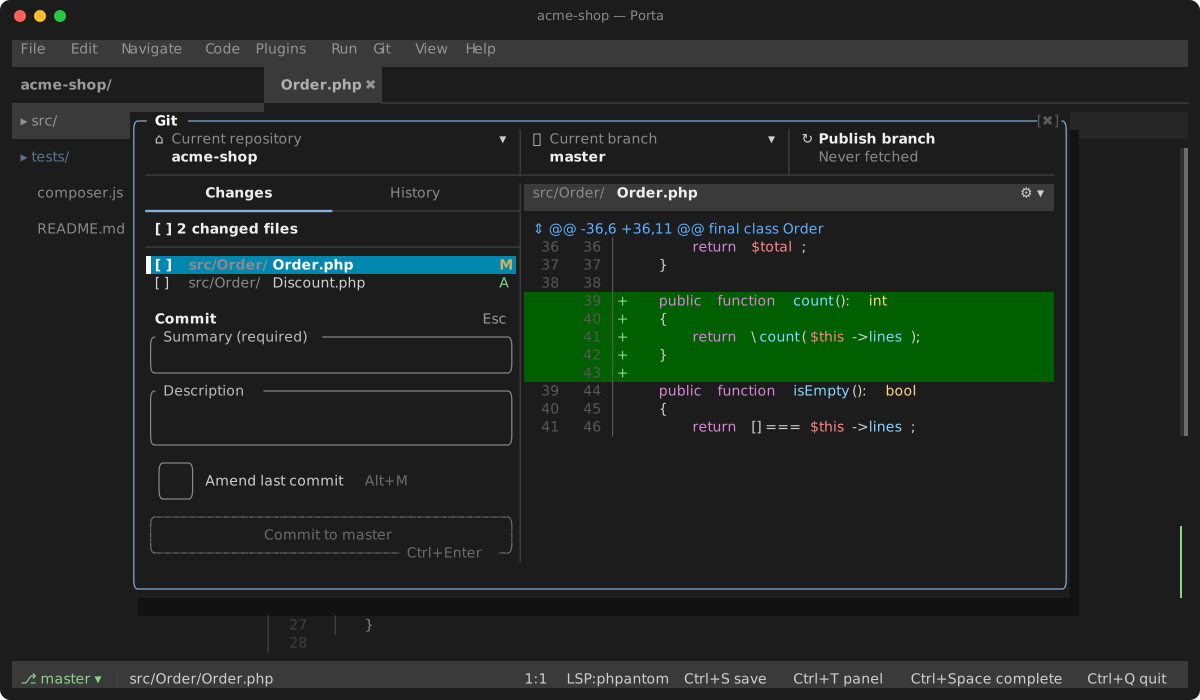
A GitHub-Desktop-style view in a window over the editor — movable, resizable, closed by Esc or a click beside it: a changes list + commit box on one side, a diff pane on the other. Status re-reads on every action and polls every 2 s while open. Two tabs: Changes (1) and History (2); Tab cycles panes; Esc closes.
Toolbar
Across the top, as in GitHub Desktop, a cell over each pane below it — the first as wide as the sidebar, the next as wide as History's files column — so each divider meets the pane's:
| Cell | Shows | A click |
|---|---|---|
| ⌂ Current repository | the repository's folder (a linked worktree's main one) | drops Worktrees… · New Worktree… |
| ◫ Current worktree | the worktree open — only once worktrees were added beside the clone; the repository cell is then a plain label | drops Worktrees… · New Worktree… |
| ⑂ Current branch | the branch, and #446 when gh finds an open pull request for it | drops Switch · New · Delete Branch… |
| ↻ Fetch origin | Pull origin ⇣2, Push origin ⇡1 or Publish branch when there is something to move, and when the last fetch was | runs that operation |
While a fetch, pull or push runs — from the toolbar, its keys or the palette — the ↻ turns (◜ ◝ ◞ ◟) and the cell says Fetching origin….
The pull request number needs the GitHub CLI on the PATH, logged in; without it the cell simply shows no number. It is asked in the background when the branch changes and after a fetch. On a short screen the cells share one bar row.
Changes
Each row is [✓] folder/name … M — the folder dimmed, the status letter flush right, the checkbox mirroring the staged state. The header's own box stands for them all: [✓] every change staged, [ ] none, [–] a mix.
| Key | Action |
|---|---|
Space | Stage / unstage the selected file |
a (or click the header's box) | Stage every change — or, when all are staged, unstage them all |
d / Delete | Discard the file's changes (inline confirm) |
| Click the checkbox | Toggle staging with the mouse |
Right-click a row (or Ctrl+F10) | Stage/Unstage · Discard… · File History menu |
Diff pane
Unified (dual gutters) or side-by-side, added rows on a green band and deleted ones on a red one, the changed words a shade stronger. Its file header is one bar row — the path, its folder dimmed — and the ⚙ ▾ at its end drops the display settings: Hide whitespace changes, Unified, Split. The ⇕ before a hunk's header shows more of the file around it.
| Key | Action |
|---|---|
v, then Space | Select a line range, then stage just those lines |
Space | Stage the hunk/selection |
c (or click ⇕) | Cycle diff context (git default → ±10 lines → whole file) |
s | Toggle unified / side-by-side (persisted); the ⚙ menu checks the one shown |
w | Toggle hide-whitespace (-w, persisted); checked in the ⚙ menu while on |
Ctrl+C | Copy the selected code lines |
Commit box
Ctrl+Enter commits the staged changes (the button enables only when something is staged, and says what it commits: Commit 2 files to main); Alt+M toggles amend, prefilling the last commit's message. Tab walks the summary, the description and the amend checkbox, where Space toggles it; Shift+Tab walks back. On a branch with no commit yet the checkbox is dashed and says No commit to amend, and Tab passes it by.
History
Three columns, as in GitHub Desktop: the commits, each its subject over author · 5 hours ago (a hairline between two on a roomy screen); the files the selected commit changed; and the diff, read-only here. Over the files and the diff, the commit itself: its subject, author · sha ⧉ (⧉ or y copies the full sha) and, at the far end, the lines it added and removed. The divider between the files and the diff drags (or Shift+F11/F12 from either), and the view keeps where you left it. Too narrow for three columns, the files stack over the diff, six rows at most.
Selecting a commit shows its first file's patch; Enter moves between the commits and the files, and Tab walks commits → files → diff. 1 returns to Changes.
The view covers changes, staging (including line-level), commit/amend and history browsing. History loads 200 commits at a time — moving past the last loaded commit pulls in the next page.
Keys
The view window Ctrl+Alt+D opens; Tab cycles panes and Esc closes.
| Key | Action |
|---|---|
1 / 2 | Changes tab / History tab |
Space | Stage or unstage — the selected file in Changes, the hunk or selection in the diff |
d / Delete | Discard the selected file's changes (inline confirm) |
v | Start a line range in the diff, then Space stages just those lines |
c | Cycle diff context (git default → ±10 lines → whole file) |
s | Toggle unified / side-by-side (persisted) |
w | Toggle hide-whitespace (persisted) |
Ctrl+C | Copy the selected diff lines |
Ctrl+Enter | Commit the staged changes |
Alt+M | Toggle amend, prefilling the last commit's message |
Enter | In History, move between the commits and the selected commit's files |
y | In a commit's files, copy the commit's full sha |
f / p / Shift+P | Fetch / pull / push |
As git's difftool and mergetool
porta --git-setup            # write the entries below to your global git config
porta --git-setup --dry-run  # print the git config commands instead
Settings → Command line does the same, and shows where it stands: Set up when nothing is there, Update when your global config runs another Porta (a checkout since moved) or only part of it is set, and Remove, which takes the porta sections out and resets diff.tool / merge.tool only while they still say porta — a tool you picked since stays.
It makes Porta both of git's tools, naming the binary by its absolute path — the phar, or the script you ran — so git finds it whatever its own PATH is:
[difftool "porta"]
	cmd = '/path/to/porta' --diff "$LOCAL" "$REMOTE"
[mergetool "porta"]
	cmd = '/path/to/porta' --merge "$LOCAL" "$REMOTE" "$BASE" "$MERGED"
	trustExitCode = true
[diff]
	tool = porta
[merge]
	tool = porta
git difftool(git difftool HEAD~1, a branch, a range…) opens each changed file in the git view, side by side or unified as you last left it. Git hands the old side over as a temp file; the view is titled with the real path.Esccloses it and git moves on to the next file.git difftool --dir-diffhands over two whole directories instead: their changed files fill the changes list, and each one you select is compared. In a comparison the stage, discard and commit keys do nothing — the rows are git's copies, not your working tree.git mergetoolopens each conflicted file in the merge view: yours on the left, the result in the editor, theirs on the right.afrom a side keeps it,bboth — or click a side's label, or edit the result yourself — thenCtrl+S, thenCtrl+Q.- By hand, the same two:
porta --diff a.php b.phpcompares two files, andporta --merge LOCAL REMOTE BASE MERGEDresolves MERGED. - The exit code is the verdict. Porta exits 0 only when the saved file holds no conflict block, and
trustExitCodemakes git believe it: a file you quit with markers left stays unresolved (merge of … failed).
A tool run leaves your project exactly as it was — no session restored or saved, no entry in the recent-projects list, no Welcome screen. With the git plugin disabled, Porta opens the file in the editor and says why.
Merges and rebases in progress
When a git merge, git rebase, git cherry-pick or git revert stops — on a conflict, usually — the branch cell in the status bar says so, with how far a rebase has got and how many files are still conflicted: ⑂ main · rebasing 3/7 · 2 conflicted files. The Git view's Branch cell says it too. It is read from git's own files, whoever ran the command — Porta or a terminal.
- Resolve each conflicted file: it opens in the merge view. Then save it and stage it (
Spacein the changes list) — that is what marks it resolved, so a file still holding a conflict marker is not staged. - Continue from the branch cell's menu, the Git view's Branch menu or the palette. It waits until no file is conflicted, as git counts them then, and keeps the message git prepared rather than opening an editor. A rebase that stops on its next conflict says so on the cell again.
- Skip This Step drops the commit that stopped and carries on — a rebase, cherry-pick or revert; a merge has no step to skip.
- Abort asks first, then puts everything back as it was before the command: what you resolved is lost.
Mid-rebase, git's "ours" is the branch you are rebasing ONTO and "theirs" the commit being replayed — the reverse of a merge. The merge view labels each side with the name git gave it, so read the labels rather than the sides.
Remote & branches
Git: Fetch, Git: Pull and Git: Push live in the command palette and the Git menu; inside the git view, f / p / Shift+P run them directly, and Ctrl+Shift+K pushes from anywhere. Pull tries a fast-forward first: when the branch has diverged, a chooser offers Rebase (local commits replayed on top of the remote) or Merge (a merge commit) — Cancel leaves everything untouched. If the integration hits conflicts it stops with git's first message; resolve in the editor and commit as usual. Pushing a branch with no upstream offers Push with --set-upstream origin <branch> instead of failing — nothing is published without a confirmation (Git: Push (Set Upstream) runs the same thing directly). Other failures (auth, rejected push) flash git's first error line. Nothing asks on the terminal: a key that needs a passphrase without an agent, or a host seen for the first time, fails with ssh's reason instead (set SSH_ASKPASS to a program of your own to be asked). An HTTPS transfer that stalls for half a minute ends, and any remote operation ends after fifteen minutes; one can also be cancelled with Git: Cancel Remote Operation.
Git: Branches… opens a picker over the editor: local branches first (newest activity first, the current one checked), then remote branches no local shadows, marked remote — picking one checks it out as a local tracking branch. The leading "+ Create new branch…" row creates and switches in one step; "− Delete branch…" picks among the other local branches and asks for confirmation before running git branch -d — an unmerged branch is refused with git's own message (use the shell for a force delete). Checkout failures (uncommitted changes in the way) flash git's message — nothing is stashed for you.
A branch another worktree has checked out says so (in worktree feat), and picking it opens that worktree — git would refuse to check it out here — and it is left out of the delete picker for the same reason. (One whose folder is gone has nothing to open: git's refusal says where it is.)
Worktrees
After GitHub Desktop. Git: Worktrees lists the repository's worktrees: the one open is checked, the main one (the clone itself) says main, each named by its folder and showing its branch (or commit, when detached). Picking one reopens Porta there — the same switch as File › Open Project, so unsaved buffers hold it until you pick again, and a worktree with its own .porta.json asks the trust question first. Below the worktrees come:
- + New worktree… (also
Git: New Worktree, the Git menu, the status bar branch's menu, and the branch picker): a name, then a branch. The name is the folder's, and by default the new branch's — as in Desktop, a branch that already has that name and is free is checked out instead of created. Any other free local branch can be picked, or a remote one, which gets a local branch of its short name. The picker's title says where the folder goes; then Open or Stay. - − Delete worktree…: its folder goes, its branch stays. A worktree with changes in it is refused by git, and a second question deletes it anyway.
- Rename worktree…: a new name beside the old folder; refused when a folder of that name exists (git would move the worktree into it).
- Lock or unlock worktree…, with an optional reason. A locked worktree cannot be deleted or renamed.
- Forget missing worktrees (
git worktree prune), offered when a worktree's folder is gone; such a worktree is listed struck through.
The main worktree, a locked one and the one open cannot be deleted or renamed: Desktop switches to the main worktree and then deletes, but here switching ends the session that would run the delete.
New worktrees go beside the main one unless Folder for new worktrees (plugins.git.worktreeFolder, ~ allowed; a relative one is read from the main worktree, as git reads it) says where. Desktop puts them in its clone folder; the main worktree's folder is the nearest Porta has. In a linked worktree the status bar's branch reads feat ❐ ide-feat.
Worktrees are listed with worktree list -z (git 2.36). An older git refuses -z, and the list is asked for again without it; only a folder with a newline in its name reads wrong that way.
Stash, file history & blame
Git: Stash shelves the working tree (git's own confirmation names the saved state); Git: Stash Pop restores the newest stash. Git: Stashes… opens a picker over the stash list — pick one, then Apply, Pop or Drop it. A conflicting pop or apply leaves standard conflict markers to resolve in the editor (the stash entry survives).
Git: File History opens the git view's History tab filtered to the current file ("commits that touched this file"); tabbing back to Changes clears the filter. Renames are not followed.
Git: Toggle Blame Annotations appends a dim sha author date annotation to every line of the open file (batch git blame); lines with an inline diagnostic keep the diagnostic instead. Annotations re-sync on save and buffer switches, and — like the gutter change marks — drift against unsaved edits until the next save. Git: Blame Current Line still flashes a single line's commit without turning the mode on.
Code review
Pull and merge request threads — and local reviews an agent leaves — are the review plugin's: see review.md.