Image viewer
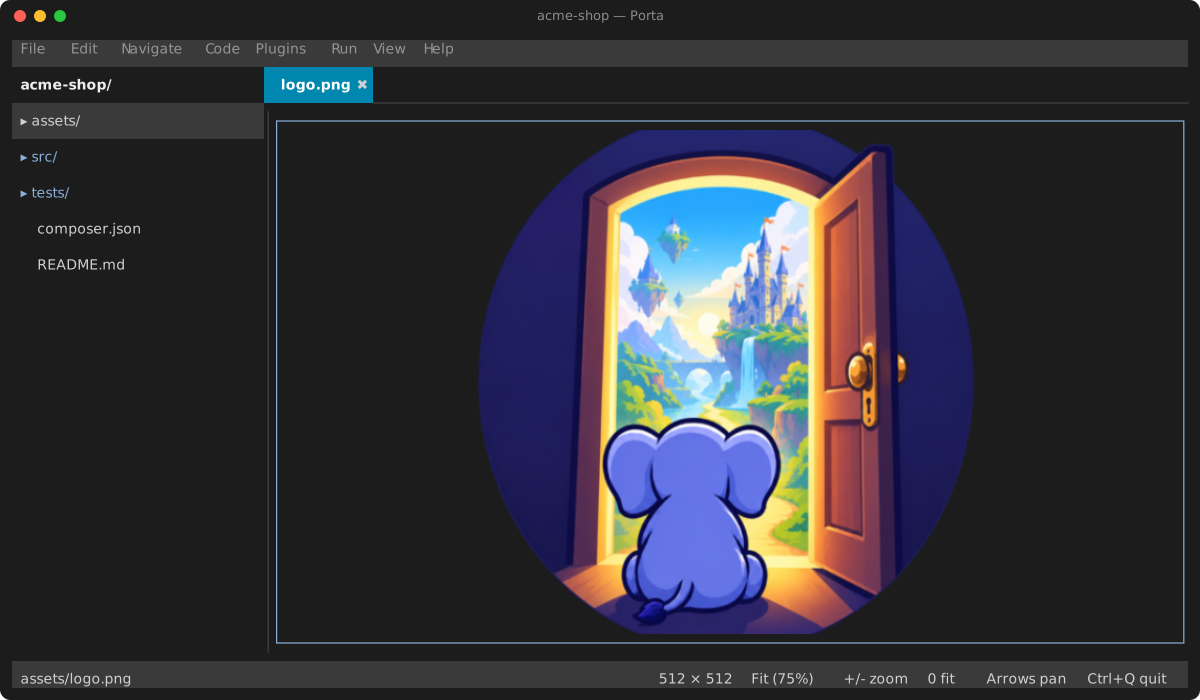
Opening a png, jpg, jpeg, gif, webp or bmp file shows it as an inline image tab instead of text. Zoom with =/-, 0/f fit, 1 actual size, or Ctrl+wheel anchored at the pointer (12.5%–800%) — or click the +, the - or the 0 fit hint on the status bar; pan with the arrows or the wheel. Shrinking averages the pixels it covers, so a downscaled image keeps its thin lines instead of shimmering; magnifying stays pixel-crisp.
.svg files are drawn by this viewer too — as a live preview beside their markup — rasterized by an external converter: the image-viewer plugin's svgConverter setting if you set one, otherwise rsvg-convert, magick or convert, whichever is installed; the plugin's Settings page installs rsvg-convert (Homebrew's librsvg) under Tools. Zooming in re-renders the drawing rather than magnifying pixels, so it stays sharp, and the status bar reports the document's own size (100% means 100% of the SVG). With no converter installed — or with Preview SVG beside its markup turned off on the image-viewer plugin's settings page — .svg opens as plain editable XML with no preview. Open as Text (Ctrl+Alt+X, or the palette) reopens a viewer tab in the editor — an image's bytes, or an SVG or a diagram too large to preview.
Ctrl+two-finger-scroll on a trackpad is the pinch: after the first notch the zoom glides continuously toward the pointer instead of jumping between the preset levels, while a single deliberate wheel click still snaps to the next one. A real pinch cannot be delivered to a program running in a terminal — the terminal receives the gesture and keeps it, usually for its own font size, and no terminal mouse protocol can express a magnification. If your terminal can bind a gesture to an escape sequence (iTerm2 does this for taps and swipes), point it at whatever key Image: Zoom In is bound to. Images over 20 MB or 16 megapixels are refused (the size cap is the bundled image-viewer plugin's setting). The plugin is enabled by default; disabling it in Settings ▸ Plugins routes images to the ordinary text-path refusal. Tab-switching and go-to-file keys keep working while an image is active.
How the picture reaches the screen — pixels in a terminal that can draw them, half-blocks everywhere else — is the same for every viewer; see Pictures in the terminal.
Keys
When an image tab is active:
| Key | Action |
|---|---|
= / - | Zoom in / out (also Ctrl+wheel, anchored at the pointer) |
0 / f | Fit to window |
1 | Actual size |
Arrows / Shift+arrows | Pan |